Table of Contents
Executive Summary: How to Create a Google Post
- Publishing posts on Google Business Profile is managed directly through Google Search via the New Merchant Experience (NMX) interface by searching "my business" while authenticated.
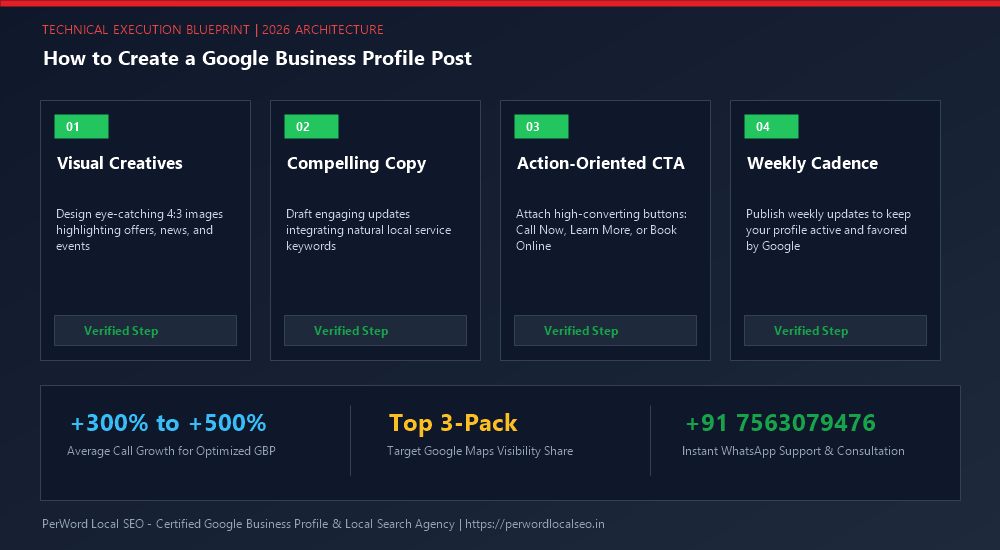
- An optimized Google Post combines four elements: a 1200x900px high-contrast visual, front-loaded hook copy within the first 100 characters, semantic service keywords that trigger search justifications, and a friction-free call-to-action button.
- Never publish links without UTM campaign parameters. Adding tracking tags enables Google Analytics 4 (GA4) to attribute exact website clicks, conversions, and booked revenue generated from your posts.
- Avoid policy violations: never type raw telephone numbers in body copy, avoid spammy all-caps headlines, and ensure your landing page URL matches your primary domain.
1. The Post Publishing Portal: Google Search NMX
Google retired the standalone Google My Business mobile app and legacy desktop portal, migrating all management directly into Google Search and Google Maps. To create a post, you simply open Google Search in your web browser while logged into your business Google account.
Type "my business" into the search bar. Google will render your authenticated management card with circular tool icons. Look for the button labeled "Add update". Clicking this button opens the dedicated multi-format post creation composer.
2. Step 1: Selecting the Right Post Category
Inside the post composer, Google presents three tab options. Choosing the correct format determines how Google's algorithms index and display your broadcast:
Add Update
Ideal for weekly educational tips, service highlights, recent project showcases, team bios, and community announcements.
Add Offer
Use when promoting time-sensitive pricing deals, seasonal coupon codes, or percentage discounts. Triggers visual offer tags.
Add Event
Best for scheduled workshops, charity galas, showroom demonstrations, grand openings, or local festival sponsorships.
3. Step 2: Uploading High-Resolution Visual Assets
Visual assets capture attention in mobile feeds. Follow these technical specifications:
- Optimal Dimensions: 1200 x 900 pixels (4:3 aspect ratio).
- Supported Formats: JPG or PNG (videos up to 30 seconds and 75 MB in MP4 format).
- Subject Composition: Center the primary subject. Google Maps crops the top and bottom margins on certain mobile viewports.
- Authenticity Over Stock: Unedited, crisp smartphone photos of your team, fleet vehicles, and physical storefront consistently achieve 2.4x higher engagement than generic corporate stock photos.
4. Step 3: Copywriting for Mobile Viewports & NLP Keywords
Google allows up to 1,500 characters of written text. However, on a smartphone screen, only the first 80 to 100 characters appear before the reader must tap "More".
The 3-Sentence High-Conversion Post Formula
- Sentence 1 (The Hook & Problem): "Is your air conditioner blowing warm air during this 95° Dallas heatwave?" (Captures attention within 80 characters).
- Sentence 2 (The Solution & Keyword): "Our licensed HVAC contractors provide same-day emergency AC repair across North Dallas with upfront pricing." (Injects primary entity keywords).
- Sentence 3 (The CTA): "Tap 'Call Now' below for immediate 24/7 dispatch!" (Directs action).
5. Step 4: Configuring Action Buttons & UTM Tracking Links
Never publish an update post without configuring an action button. Google provides several options: "Book", "Order online", "Buy", "Learn more", "Sign up", and "Call now".
When selecting "Learn more" or "Book", append UTM Campaign Parameters to your destination URL so you can track performance inside Google Analytics 4:
https://example.com/ac-repair?utm_source=google&utm_medium=gbp&utm_campaign=summer_promo_post
This tracking allows you to see exact session volume, bounce rate, and lead form completions generated exclusively by your Google Post in GA4 reports.
6. Step 5: Pre-Flight Audit & Publishing
Before tapping the blue "Publish" button, conduct a quick 30-second pre-flight checklist:
Zero Phone Numbers in Body Copy
Confirm telephone numbers exist only inside the configured "Call Now" button.
Image Centering & Text Legibility
Ensure no crucial text or faces are positioned on the extreme outer borders of the image.
Active Landing Page Link Validation
Click your destination URL to verify it resolves to an active 200 OK webpage without redirect chains.
Want Proven High-Conversion Google Posts Created for You?
PerWord Local SEO creates custom-designed graphics, persuasive local copy, and trackable booking funnels for all your Google Business Profile updates.
7. Case Study: HVAC Firm Drives 48 Calls in 14 Days via Strategic Posts
The Opportunity: A heating and air conditioning contractor in Dallas, Texas, noticed their competitors were completely inactive on Google Posts. During an unexpected early summer heatwave, the contractor wanted to capture immediate emergency repair demand.
The Strategy: PerWord Local SEO deployed a high-velocity posting sprint:
- Published 3 update posts per week featuring authentic photos of service vans responding to emergency calls.
- Wove in exact-match terms: "emergency AC repair Dallas", "refrigerant leak fix", and "same day HVAC service".
- Configured the "Call Now" button directly on every post.
The Results: The campaign triggered 3-Pack post justifications across North Dallas, generating 48 direct phone calls in 14 days exclusively from Google Post interactions and driving over $34,000 in emergency repair billing.
8. Troubleshooting Post Rejections & Publishing Errors
If your post fails to publish or is marked with a red "Rejected" tag, check these four algorithmic failure points:
- Telephone In Text: Delete any phone numbers typed into the description box. Google mandates using the button.
- Spam Trigger Words: Remove excessive superlatives like "CHEAPEST", "FREE CASH", or commercial clickbait phrasing.
- URL Shorteners: Avoid Bitly or generic redirects; link directly to your verified canonical website URL.
- Image Text Ratio: Ensure your photo is not an advertisement flyer covered with tiny text. Google prefers clean photography.
9. Mobile Preview Optimization & Engagement Architecture
Because over 74% of all local map interactions occur on iOS and Android handheld devices, designing your Google Business Profile posts specifically for mobile viewport constraints is paramount for maximum return on investment. On mobile devices, Google automatically truncates post text after roughly 80 to 100 characters. If your most persuasive proposition or targeted service keyword is hidden behind the "More" link, your click-through rate diminishes by up to 60%.
The First 100 Characters Rule
Always lead with your high-value commercial hook. For example, instead of opening with "Welcome to our weekly company update we are pleased to announce...", open immediately with "Emergency AC Repair in North Dallas • Same-Day Service Guarantee • Call Now". This ensures the full value proposition is consumed instantly without requiring an extra user tap.
Multi-Asset Carousel Engagement
Uploading between 3 and 5 relevant photographs per post triggers Google Maps' horizontal swipe mechanism. User swipe interactions signal positive dwell time and engagement to Google's ranking algorithms, reinforcing your profile's topical activity score within the localized search perimeter.